
SketchUp Lab License Intro

SketchUp Lab License Intro
Intro:Add a Lab version license to SketchUp
Please perform the following actions with an internet connection.
On SketchUp wellcome page, find text link 【License】 or 【Add new license】.

Tap the tag:【Classic License】 and click 【Add new license】.

Input your own serial number and authorization code, then click 【Add license】.

So now you should see your license detail as shown in dialog.

Intro:Temporarily set your SketchUp license to offline mode
Please perform the following actions with an internet connection.
Open dialog in SketchUp UI: 【Help】>【License】.
Tap the tag 【Classic License】, then click 【Check Out License for Offline Use】.
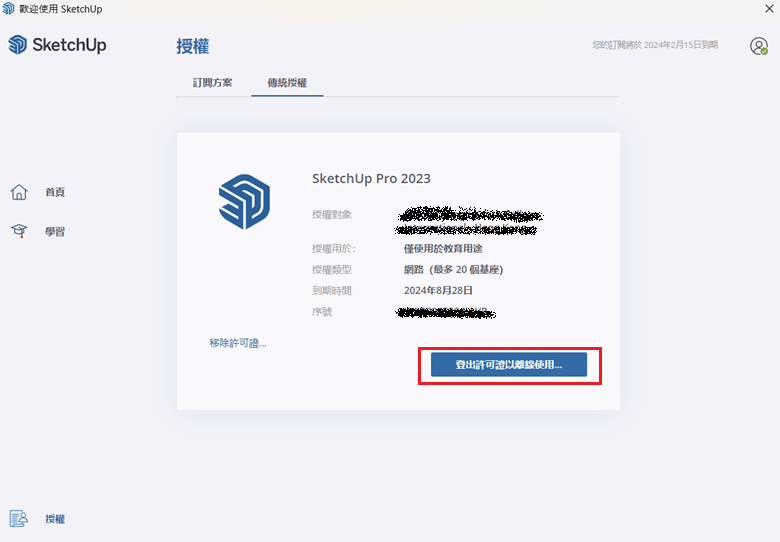
You will be set up to offline mode up to 7 days.
You can click 【Check Out】 and finish your apply.
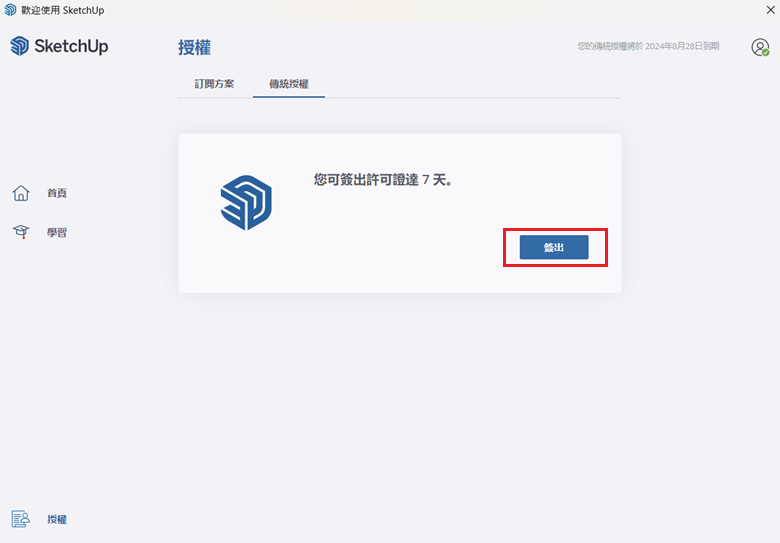
Now you can see your offline mode detail in this dialog.

Intro:Return your SketchUp license from offline mode
Please perform the following actions with an internet connection.
Open dialog in SketchUp UI: 【Help】>【License】.
Tap the tag 【Classic License】, then click 【Check In】.

You are done now and click 【Finish】 instead.
If you don’t check in a license, it’s checked in automatically when the check-out period expires.

您可能也對以下訊息有興趣
 https://condata-ai.com/wp-content/uploads/2026/05/Banner-sketchup-20260529promotion-HK-icon.jpg
450
450
dimi.yang
/wp-content/uploads/2025/07/test-logo.png
dimi.yang2026-05-27 11:31:322026-06-10 12:51:27SketchUp 2026 年中【20% off 限定快閃優惠】
https://condata-ai.com/wp-content/uploads/2026/05/Banner-sketchup-20260529promotion-HK-icon.jpg
450
450
dimi.yang
/wp-content/uploads/2025/07/test-logo.png
dimi.yang2026-05-27 11:31:322026-06-10 12:51:27SketchUp 2026 年中【20% off 限定快閃優惠】 https://condata-ai.com/wp-content/uploads/2026/05/Banner-sketchup-202605promotion-HK-icon.jpg
450
450
dimi.yang
/wp-content/uploads/2025/07/test-logo.png
dimi.yang2026-05-12 17:53:412026-06-29 17:13:43SketchUp 2026春季【15% off】限時優惠
https://condata-ai.com/wp-content/uploads/2026/05/Banner-sketchup-202605promotion-HK-icon.jpg
450
450
dimi.yang
/wp-content/uploads/2025/07/test-logo.png
dimi.yang2026-05-12 17:53:412026-06-29 17:13:43SketchUp 2026春季【15% off】限時優惠 https://condata-ai.com/wp-content/uploads/2025/11/Banner-promotion-sketchup2025CW_TW-icon.jpg
450
450
dimi.yang
/wp-content/uploads/2025/07/test-logo.png
dimi.yang2025-11-19 13:06:382025-11-24 09:58:31SketchUp 2025 Cyber Week【25% OFF】Promotion
https://condata-ai.com/wp-content/uploads/2025/11/Banner-promotion-sketchup2025CW_TW-icon.jpg
450
450
dimi.yang
/wp-content/uploads/2025/07/test-logo.png
dimi.yang2025-11-19 13:06:382025-11-24 09:58:31SketchUp 2025 Cyber Week【25% OFF】Promotion https://condata-ai.com/wp-content/uploads/2025/06/Banner-promotion-chaos_upgrade-2025_HK-icon.jpg
450
450
dimi.yang
/wp-content/uploads/2025/07/test-logo.png
dimi.yang2025-06-13 12:27:062025-06-27 11:56:41【Save up to 40%】V-Ray、Anima — Limited time offer to upgrade your perpetual license
https://condata-ai.com/wp-content/uploads/2025/06/Banner-promotion-chaos_upgrade-2025_HK-icon.jpg
450
450
dimi.yang
/wp-content/uploads/2025/07/test-logo.png
dimi.yang2025-06-13 12:27:062025-06-27 11:56:41【Save up to 40%】V-Ray、Anima — Limited time offer to upgrade your perpetual license請訂閱電子報


Tel:886-2-8768-1631
Service Hours:Mon.-Fri. 9:00am-6:00pm


Tel:886-2-8768-1631
Mail:service@condata-ai.com
Service Hours:Mon.-Fri. 9:00am-6:00pm